To ensure your account remains secure, Audiomack uses a dual-verification process for email updates. Changing your email address requires verification from both your current and new email addresses.
1. Go to yourAccount Settings:
Enter the new email address you would like to use.
Note: The new email address shouldn't be associated with another Audiomack account. You can only have one pending email change request at a time, and it is only active for 24 hours.
2. Confirm from Your Current Email: Look for the confirmation email from Audiomack and click the verification link to authorize the change.
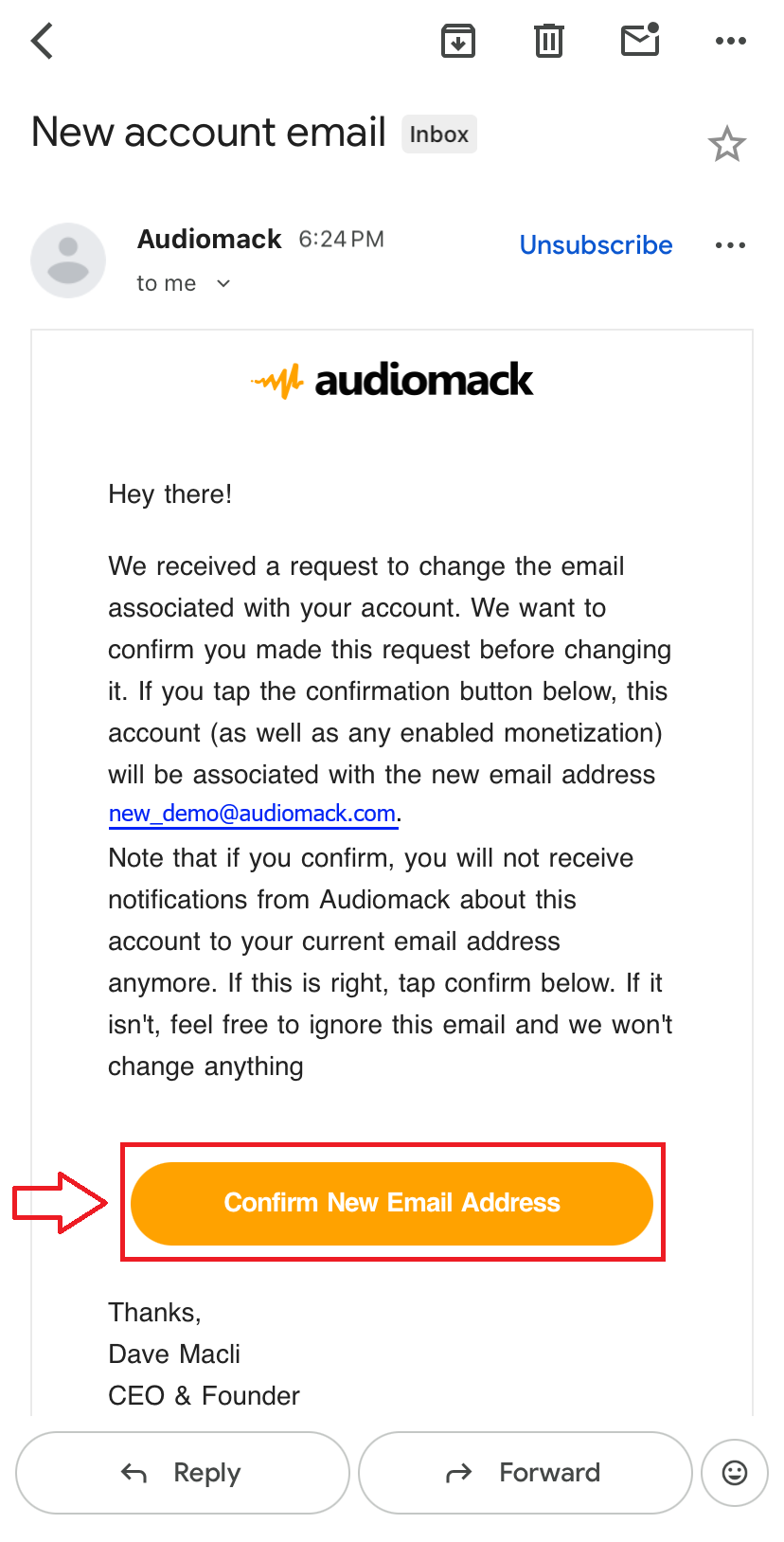
3. Confirm from Your New Email
After confirmation from your old email, you will see a notification: "Old email confirmed. Now, please confirm the new email to finish the process."
Check the inbox of your new email address.
Open the email and click the confirmation button.
5. Once you click the link in the second email, our system automatically updates your account. You can now log in using your new email address.
Updating your email address via the Audiomack App:
1. Tap on the settings gear at the top right of your screen
2. Select the "Change email" option
3. Type the new email address you want to use in the blank field.
4. Tap the "Update email" button to save the changes
6. Locate the Audiomack confirmation email and click the verification link.
7. Confirm your new email address.
Updating your email address via the Creator App:
1. Tap on your profile picture/avatar at the top right corner of the screen
2. Scroll down and tap on "Edit Profile"
3. Tap on the "Email" field and type in the changes you want to make
4. Scroll down and tap the "OK" button to update your email address
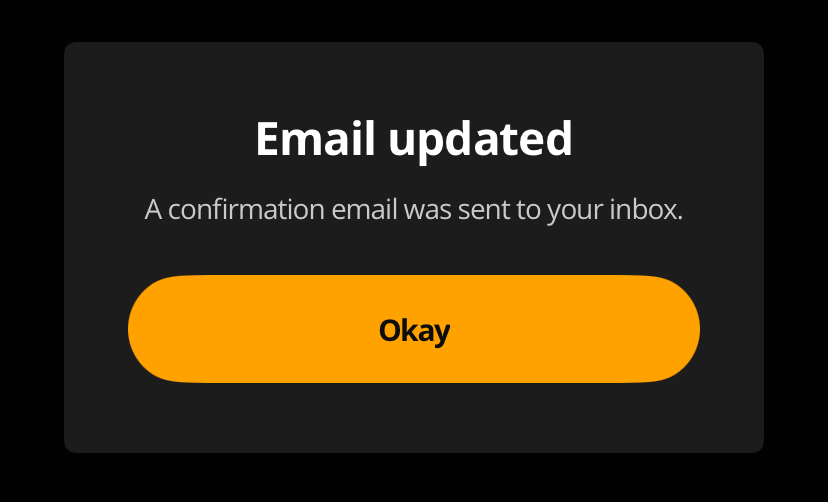
5. Confirm the email update.
Verify Old Email: Check your current inbox and click the link to authorize the change.
Verify New Email: Once the old one is confirmed, we'll send a final link to your new inbox. Click that to finish the process.
Updating your email address via the Web:
1. From the Audiomack homepage, click on your profile picture/avatar at the top right corner of the screen
2. Select "Account Settings" from the drop-down menu
3. Find the "Update Email" heading in the navigation bar
4. Type the new email address you want to use in the blank field
5. Click on the "Update Email" button to save your changes
6. Confirm the email update.
Verify Old Email: Check your current inbox and click the link to authorize the change.
Verify New Email: Once the old one is confirmed, we'll send a final link to your new inbox. Click that to finish the process.
Tips:
Didn’t receive the email? Check your Spam or Junk folders. If it’s still missing, ensure you typed the new address correctly and try again.
Link expired? If the 24-hour window passes, simply log back into your account and initiate a new request.
No access to your old email? If you can no longer access your original email inbox to confirm the change, please reach out to our support team at support@audiomack.com for manual account verification.
 at the top right of your screen